

Duo Script
With Teleprompter Pro on iPhone Duo, you can show your Teleprompter script on the outer display while recording with the rear cameras as the same time.
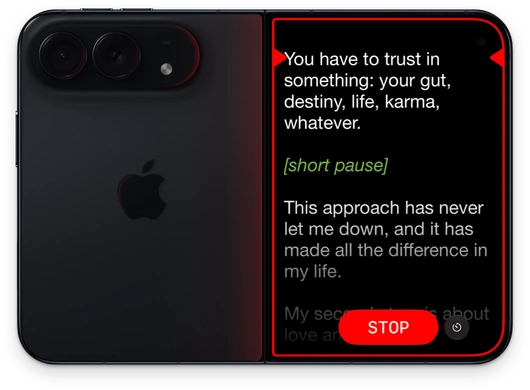
Enable Duo Script
To begin recording with Duo Script in Teleprompter Pro, start by enabling the camera:
- Open any script in Teleprompter Pro
- Tap

- Tap
 Enable Camera
 - If prompted, allow Teleprompter permission to access your device camera and microphone. This is required to record your videos.
Once the camera is enabled, a new button will appear in the toolbar when using iPhone Duo:
- Tap the
 button in the toolbar
 - Tap Duo Script
Your teleprompter script will now be shown on the outer display while using the rear camera. On the outer display you can scroll the text, set the countdown timer, and toggle the video recording.
The inner display will show a new layout with a preview of the script, and you can control the scrolling and recording as before:
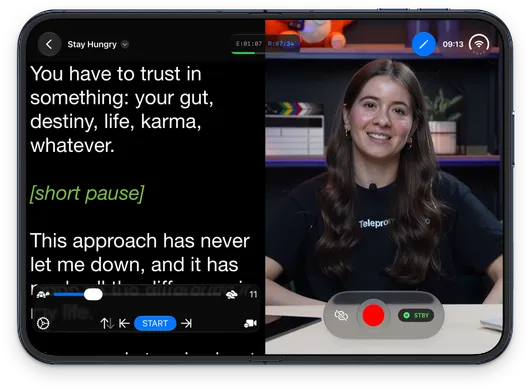
To disable Duo Script, tap the button in the toolbar, then select  Off
Off
Record a video
To record a video with Duo Script enabled:
- Open any script in Teleprompter Pro
- Follow the steps above to enable the camera and Duo Script if it’s not already enabled
From the outer display:
- Tap the START button to begin recording
- Record your video as needed
- Tap the STOP button to end recording
From the inner display:
- Tap
 to begin recording
 - Record your video as needed
- Tap
 to end recording
Use the Standard Interface on the Outer Display
Alternatively, you can still use Teleprompter Pro with the system provided option to use the outer display while recording with the rear cameras. This allows you to use the standrd Teleprompter interface, including your live video preview with all controls, on the outer display:
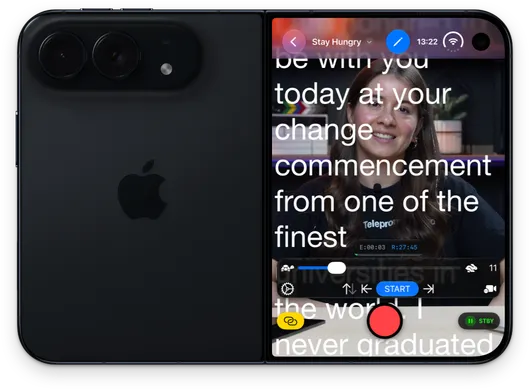
To show the standard Teleprompter Pro interface on the outer display, you must first disable Duo Script, then use system slide to show camera option on the outer display:
- Open any script in Teleprompter Pro
- Tap
- Tap Enable Camera
- If prompted, allow Teleprompter permission to access your device camera and microphone. This is required to record your videos.
Check that that Duo Script is disabled:
- Tap the button in the toolbar
- Tap Off
Select a rear camera for recording:
- Tap Enable Camera
- Tap
 Settings
 - Select either of the rear cameras as the active camera
- Tap Done
iPhone Duo will now present a slide to show camera option on the outer display:
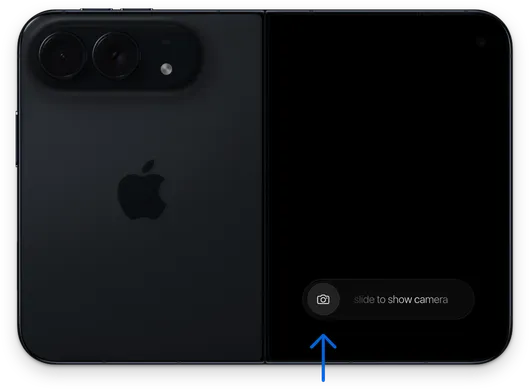
Use this slider to activate Teleprompter Pro on the outer display, allowing you to see your video image and read your script while recording with the rear camera at the same time.
To return to the inner display, use the slide to show camera slider on the inner display.
Countdown Timer
Show a countdown timer before video recording begins from the outer display:
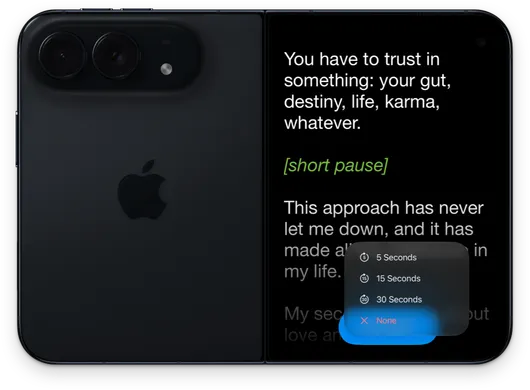
To enable the countdown timer:
- Open any script in Teleprompter Pro
- Follow the steps above to enable the camera and Duo Script if it’s not already enabled
- Tap

- Select
 5 Seconds,
  15 Seconds, or
  30 Seconds
To disable the countdown timer, select  None
None